Click on a tab below to access help
General Help (log in to see more help)
I’ve forgotten my password.
Use the Password Reset page to reset your password. A password reset link will be sent to your email address.
How do I edit my profile details?
Log in to the website and you will be taken to a page explaining what to do.
How do I join the Deeside Bike Collective?
Visit our Join Us page for more information.
General Member Help
I’ve accidentally unsubscribed from the email list. How can I re-join?
Logged in members can rectify this using the help on this page.
How do I edit my profile details?
Log in to the website and you will be taken to a page explaining what to do.
I can’t edit my own profile
If you have a Junior account created with someone else’s email account (probably one of your parents) you will not be able to modify your profile. To gain access to editing your own profile, email address and password, please contact website@deesidebikecollective.co.uk. We will change your account to an independent Junior or Ordinary Member account, depending on your age.
Core Members &Trustees Help
To make your profile visible on the Our Team page
In Profile Editing mode, Upload a photo at the top of the form below.
Ensure all your details below are correct and as complete as you want them to be, Edit if not
Go to your Privacy setting and change “Hide My Profile From Directory” to No to make your profile visible to the public.
Check you’ve appeared as you wish to on the Our Team page
Log out and double check it still appears on that page as it should!
Author & Editor Help
Logging in with the WordPress App (author/editor only)
- Go to The JetPack Dashboard to link your account with a wordpress account

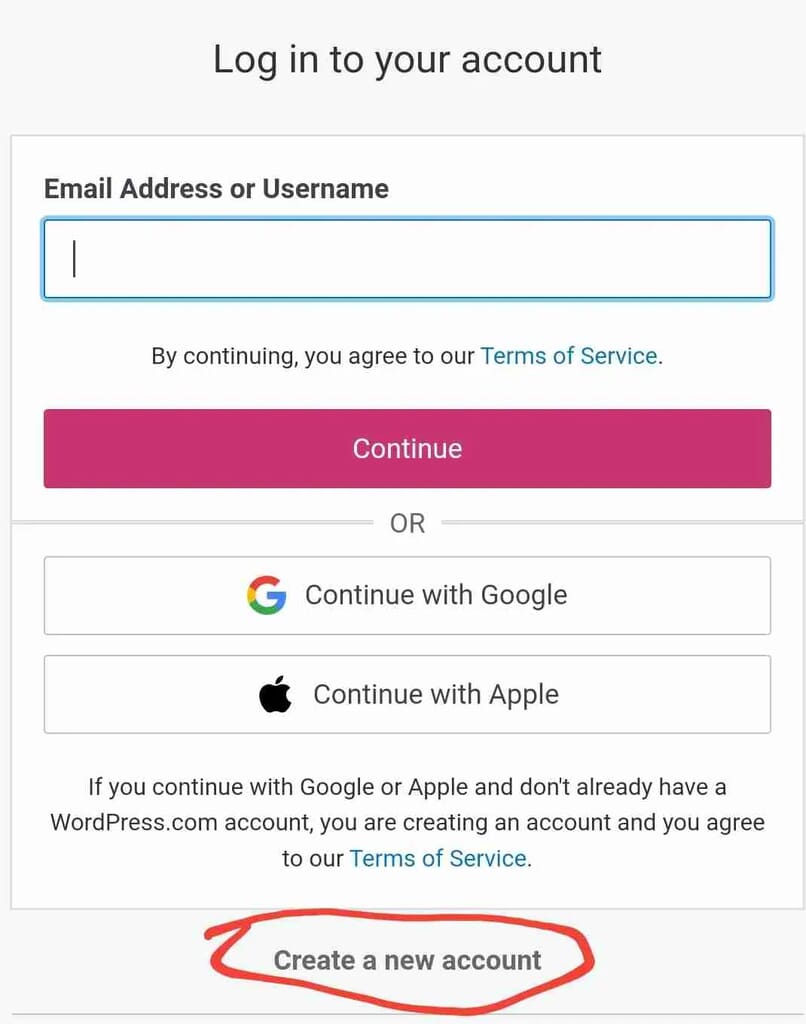
4. At the “Log in to your account” window, log in if you have a WordPress.com account. Step 5 below will presume you are creating an account or logging in with your DBC google account.
The first time you access the service, you will need to create an account. To do this:
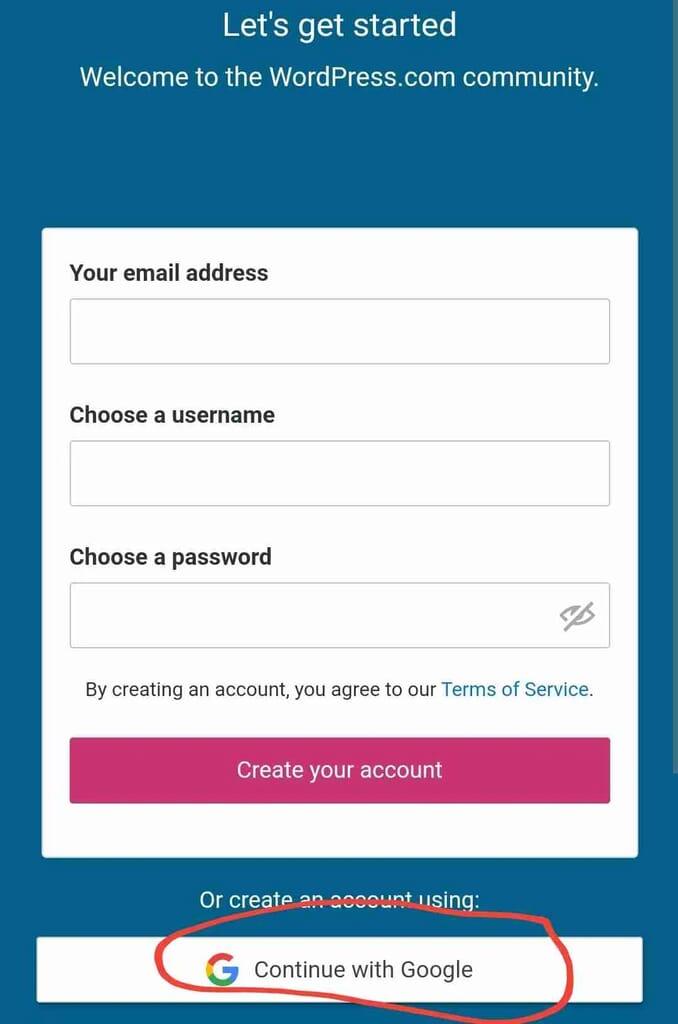
6. Logging in with your DBC Google Account (pop up box)
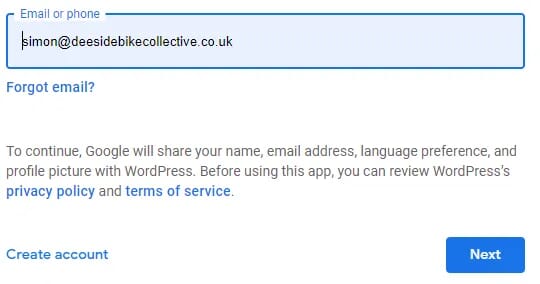
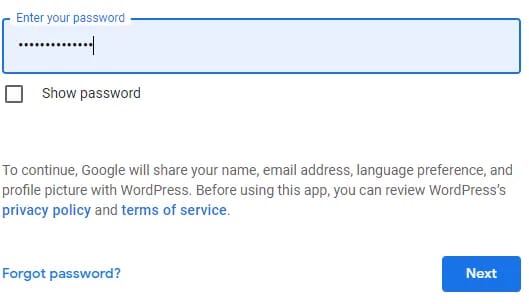
7. Approve and complete the process, and access the WordPress mobile app
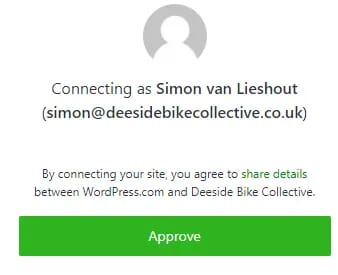
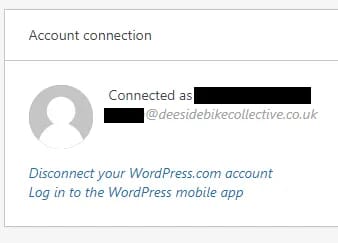
8. To use the WordPress app, download the app it from the Apple or Android store, and log in using the same process as above – choose “Continue with Google” and enter your DBC google account email address and password.
9. Once installed, use the app to add or edit content.
10. You have the ability to publish blog posts at your fingertips! See next help item for more information.
Publishing content (author/editor only)
Introduction to content types
There are different types of content which can be added to the website.
- A Blog post is the preferred method of adding content to the News section of the website. It contains a “featured image” which allows it to appear nicely on the News page, and the image should come across to Facebook too if the link to the blog post is shared on Facebook. Blog posts are easy to add from the WordPress App.
- A Story post is a picture with a title and optionally a bit of text under the picture, which bizarrely you have to add in after publishing the image. It doesn’t have a “featured” image so doesn’t look as nice in the blog or on the website. Story posts are best avoided if possible for this reason.
- A Page is a permanent part of the website and should be discussed with the website manager. It needs to be integrated into the menu and url (web address) structure of the website. They need to have layouts which work both on larger screens and mobile devices. They are therefore best not added from the app and are only available to website editors.
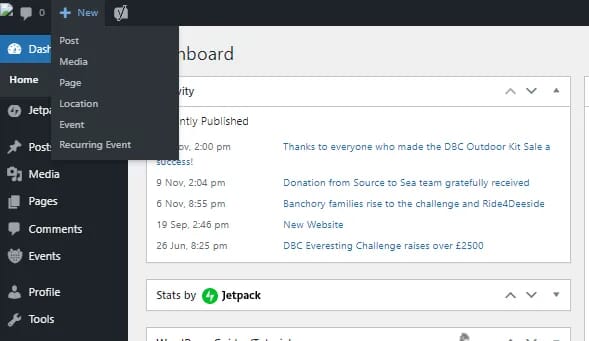
- Events can unfortunately not be added via the app at present, you need to log in to the website to do this. Users with access to adding content will have an “Admin” link at the top of their page when they log in.
- Media items are photos, videos and audio files. They don’t show anywhere else unless you add them into another type of content. They can be added on the fly into other types of pages, and don’t add media items separately.
Publishing content via the WordPress App
See Walk-Through video for more information.
Publishing content via the website
Logged in users with appropriate permissions should be able to see an “Admin” link in their top menu once they are logged in.
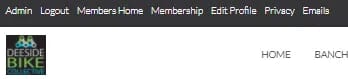
2. If you want to see existing draft or published content, click on “Posts“, “Pages” or Events on the left hand menu.
Member Manager Help
Managing Members (member manager/admin only)
To display members profiles visit the Members Directory
To manage members visit the Users Admin Page